Image animation

Turn a Still Image Into Motion with deevid image to video

Use deevid image to video to give a still frame movement, atmosphere, and a clear visual direction. Start with one strong image, describe the motion you want, and refine the result for social clips, product concepts, or visual stories.

Free to start · no signup
1
Still image input
1
Motion direction
1
Video concept
Still image transformed into a moving video scene

Practical starting points

What This Variant Is For

Image-to-video is most useful when the visual subject already exists and the goal is to add controlled movement rather than invent every frame from text.

Product marketers

Begin with a clean product photograph and describe a camera move, lighting change, or small environmental motion.

The result can become a short concept clip for a launch page, social post, or creative review.

deevid ai text to video

Creators with artwork

Upload an illustration, poster, or character image and request a gentle parallax effect, drifting details, or a cinematic reveal.

Existing artwork gains a sense of depth while its main composition remains the visual reference.

deevid text to image

Social video teams

Use a portrait or lifestyle frame as the starting point, then specify expression, fabric, hair, or background movement.

A static asset becomes a flexible source for teasers, story cards, and short-form experiments.

deevid ai text to video
Input and output

Why a Still Frame Becomes a Moving Scene

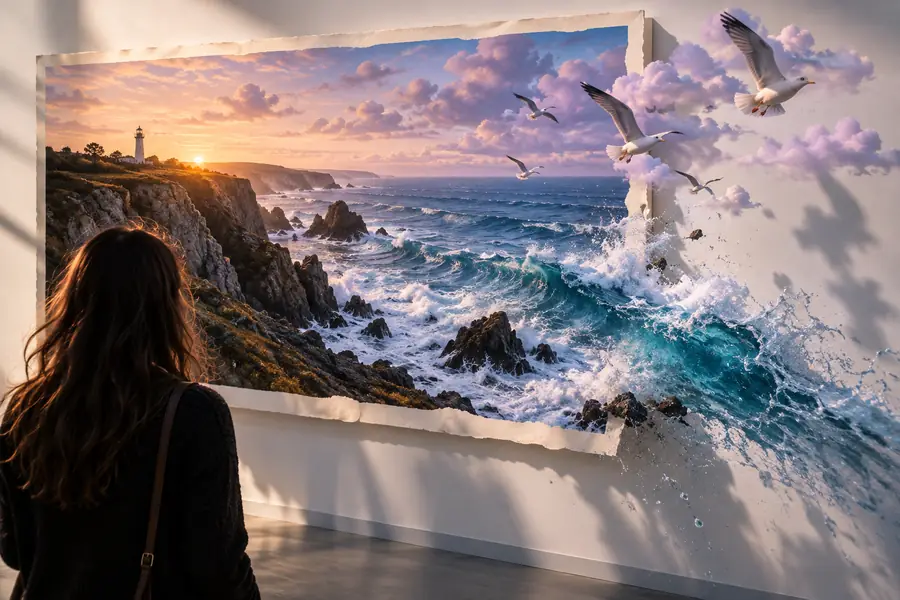
The source image anchors identity and composition; the generated clip adds time, motion, and interpretation. The closer the requested movement is to the visible structure of the image, the easier it is to judge.

Source image Generated video
1

Primary role

Source image

Defines the subject, framing, colors, and visible details.

Generated video

Adds movement, timing, atmosphere, and transitions.

2

Typical format

Source image

JPG, PNG, or another supported still-image format.

Generated video

A short video clip suitable for preview, editing, or sharing.

3

Creative control

Source image

Control comes from the original composition and visual reference.

Generated video

Control comes from the motion prompt and selected generation settings.

4

Best prompt language

Source image

Describe what is already visible and what should remain stable.

Generated video

Describe camera movement, subject action, speed, mood, and environmental motion.

5

Common strength

Source image

Preserves a chosen product, character, scene, or art direction.

Generated video

Creates movement without requiring a full live-action shoot.

6

Common risk

Source image

A weak or blurry source gives the model less visual structure to follow.

Generated video

Fast or complex movement can distort edges, faces, text, or small objects.

7

Review focus

Source image

Check clarity, orientation, lighting, and subject placement first.

Generated video

Check temporal consistency, unwanted motion, and whether the action matches the prompt.

8

Best use

Source image

Reference image for a focused visual transformation.

Generated video

Short-form concept, pitch visual, social asset, or scene experiment.

Visual transformation

From Reference to Moving Result

A useful comparison starts by asking what the image contributes and what motion adds. Keep the subject, framing, and intended action easy to recognize from the first frame to the last.

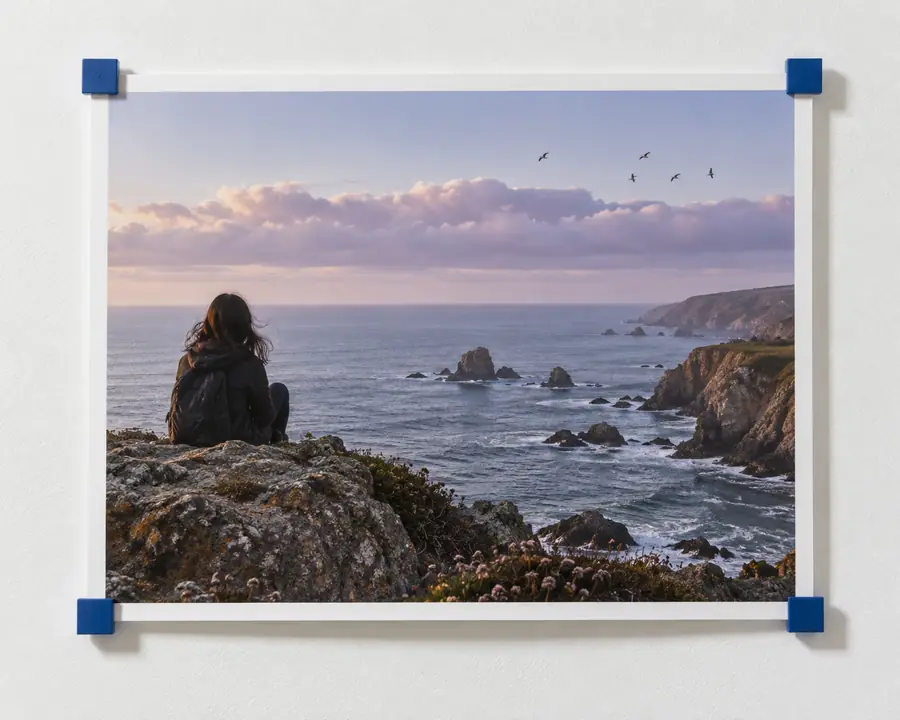
Before: still reference

Static visual reference prepared for animation
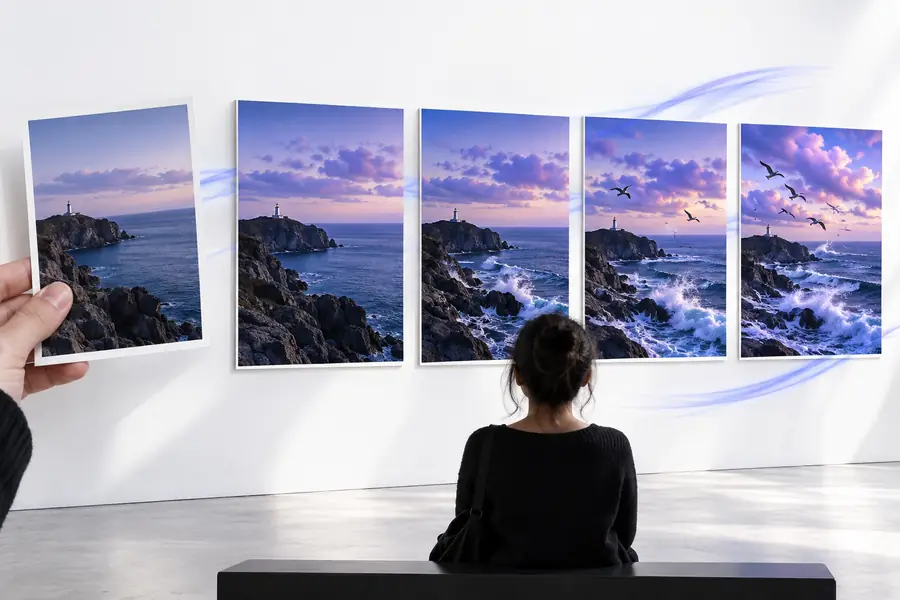
Animated scene based on the visual reference
After: motion concept

The image anchors the scene; the prompt defines its movement.

Format evolution

How Image-to-Video Workflows Got Here

The format grew from simple motion applied to still assets into a prompt-led workflow that combines visual reference with generated action.

  1. Still images entered motion tools

    Editors began turning photographs and illustrations into clips with pans, zooms, layered depth, and timed transitions.

  2. Short-form video raised the demand

    Social channels made compact animated assets useful for products, campaigns, explainers, and visual storytelling.

  3. Generative motion became practical

    AI video systems started using images as visual guidance instead of relying only on a written scene description.

  4. Prompts became motion directions

    Creators increasingly described camera paths, subject actions, pacing, and atmosphere alongside the uploaded image.

  5. Reference-led iteration is the workflow

    The strongest process is iterative: prepare a clear image, request one readable motion idea, inspect the clip, and refine.

Set expectations

What This Route Cannot Do Reliably

Image-to-video is powerful, but the source image does not guarantee perfect identity, physics, typography, or continuity. Treat each generation as a visual draft that needs review.

It cannot preserve every tiny detail

Small lettering, jewelry, fingers, thin lines, and intricate textures may change as the scene moves.

WorkaroundUse a high-resolution source, simplify distracting detail, and inspect the complete clip before publishing.

It cannot infer an exact camera plan

A request such as “make it cinematic” leaves room for interpretation and may produce movement different from your intent.

WorkaroundName one camera move, its direction, and its pace, such as a slow left-to-right tracking shot.

It cannot make complex action consistent every time

Fast gestures, multiple interacting objects, and heavy perspective changes can introduce warping or uneven motion.

WorkaroundStart with one subject and one main action, then build complexity through separate shots.

It cannot replace a finished edit

A generated clip may still need trimming, sequencing, sound, captions, color work, or brand review.

WorkaroundExport the strongest take and complete the final story in your normal video editor.

Workflow at a glance

The Deevid Image-to-Video Tool

Think of the process as a compact three-part brief: supply the visual anchor, state the intended movement, then evaluate the clip against the original goal.

Choose a clear visual reference
1 image
Describe the main action or camera move
1 motion idea
Check consistency before sharing
1 review
Replace vague prompts with visible details
0 guesswork

Variant FAQ

Image-to-Video FAQ

It means using a still image as the visual starting point for a generated video. The image supplies the subject and composition, while your direction asks for movement, camera action, or atmosphere.

Use a clear image with a readable subject, stable composition, and enough detail around the area you want to animate. Product photos, portraits, illustrations, and simple scenes are often easier to direct than cluttered images.

Describe what should move, how it should move, and what should stay steady. Specific directions such as “slow camera push-in,” “hair moves in a light breeze,” or “steam rises from the cup” are easier to evaluate than broad style words alone.

Yes, a product photo can be used as the reference for a short motion concept, such as a camera move, changing light, drifting background detail, or a controlled reveal. Review logos, labels, edges, and proportions carefully because fine details may shift.

Neither route is always better; they begin with different inputs. Image-to-video is a strong choice when you already have a subject or composition to preserve, while deevid ai text to video is useful when the scene needs to be described from scratch.

Start creating
Start creating